Skip to content

Editing a board

Everything about a board can be changed in the app — no separate editor, no re-import cycle.

  1. Open Setup (the gear button at the end of the message bar).
  2. Choose Edit board in the Setup header (or open This board for board-level actions like switching, importing, and exporting).
  3. The board switches into editing: tap any button to change what it says, its label, its look, or where it leads.
  4. Finish editing to go straight back to speaking.
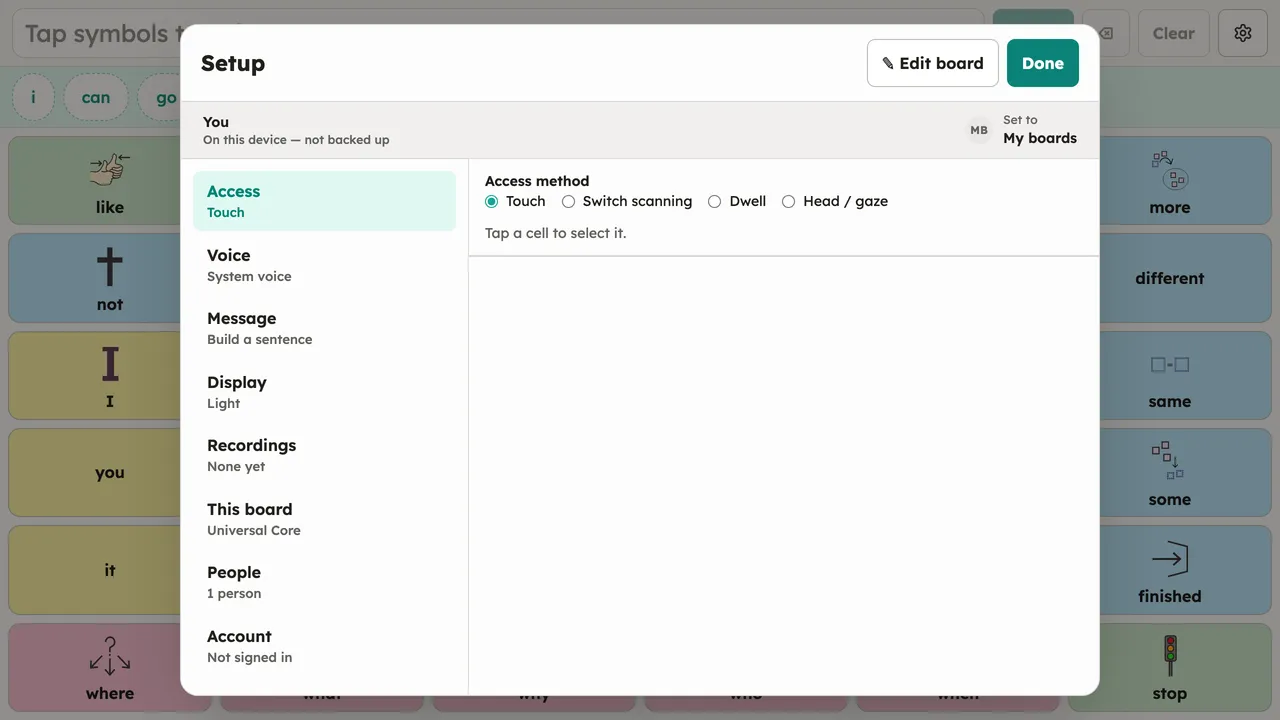
The Setup dialog open over the Core Words board: the eight section rows (Access, Voice, Message, Display, Recordings, This board, People, Account) with live value summaries. Desktop shows master-detail with the Access panel auto-selected; the phone variant shows the home list filling the sheet. Light theme.
Setup: Edit board lives in the header; This board holds import/export.
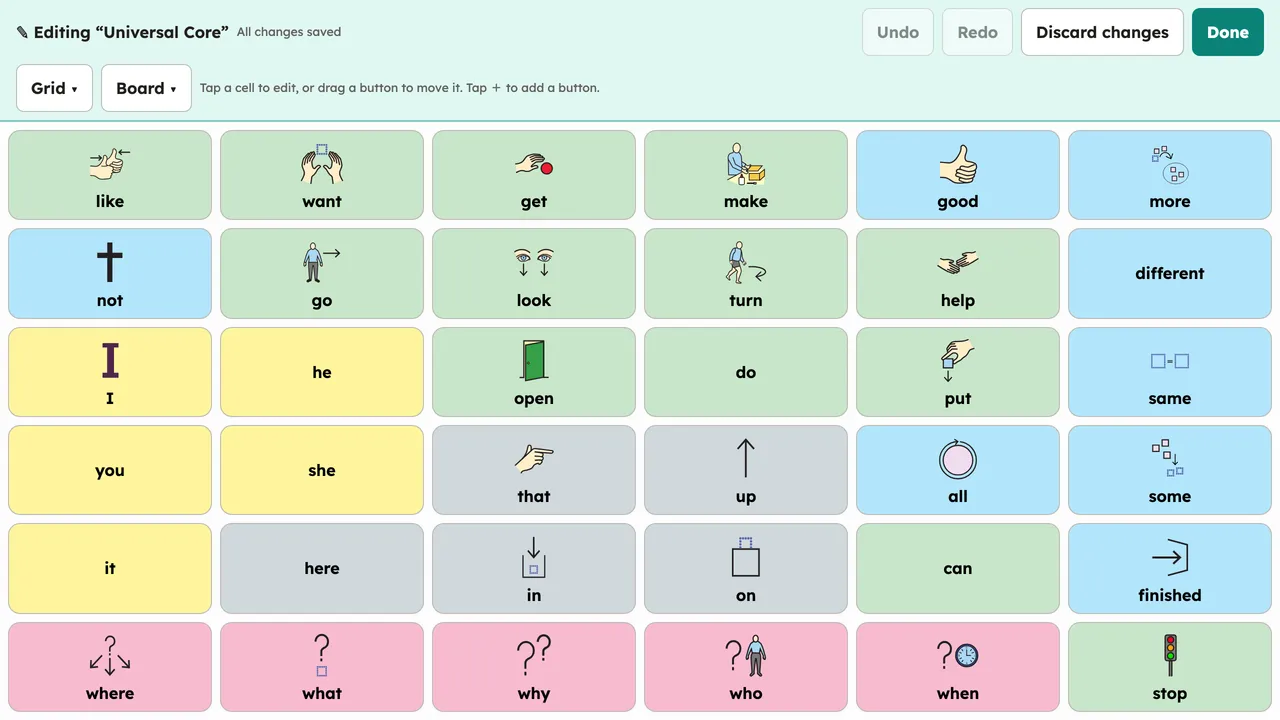
The Core Words board in edit mode: the Editing toolbar replaces the message bar and every cell shows its edit affordance. Reached via Setup → Edit board. Desktop, light theme.
Edit mode: the Editing toolbar replaces the message bar.
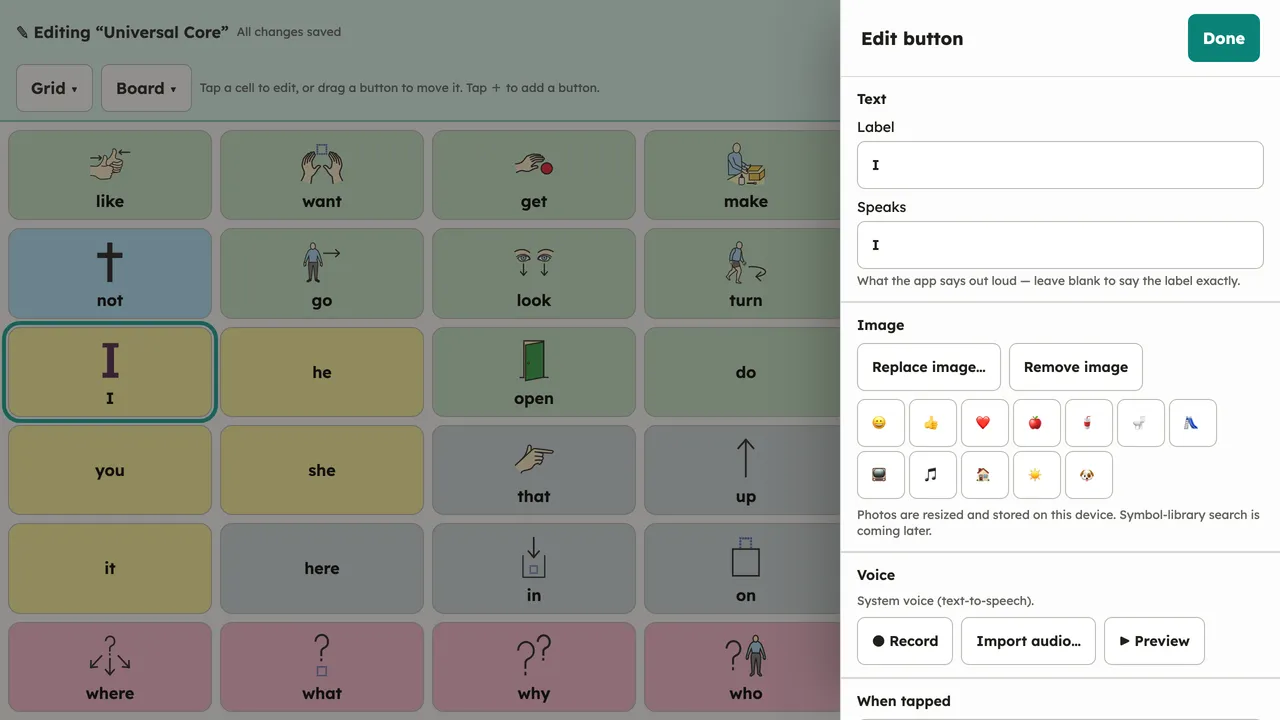
The Edit button dialog open over the board in edit mode for the "I" button, showing the Label field and the button's other properties. Desktop, light theme.
Tap a cell to open its editor — label, spoken text, image, and voice.

Edits save to this device as you go. If the person’s boards sync to an account, edits travel with them — end-to-end encrypted, like everything else.